
 01
01Choose your reference
Upload a clear photo or character reference and optionally describe appearance changes.
Turn photos into Minecraft skins: preview your character, refine the look, then generate your skin. Edit the result and switch models in the browser.
Preview → Refine → Generate → EditPreview the character first. Generate the skin when you love the look.

Java & Bedrock compatible
AI-generated skin · 64 × 64 PNG · Generations may take a few minutes.
Check matching front and back previews
Adjust hair, outfits and colors in your instructions
Edit pixels and switch Classic / Slim models
Start with matching front and back character previews. Refine your appearance instructions and regenerate the preview if needed; convert your chosen design into a skin when you are happy. Edit the final 64×64 PNG in the browser.
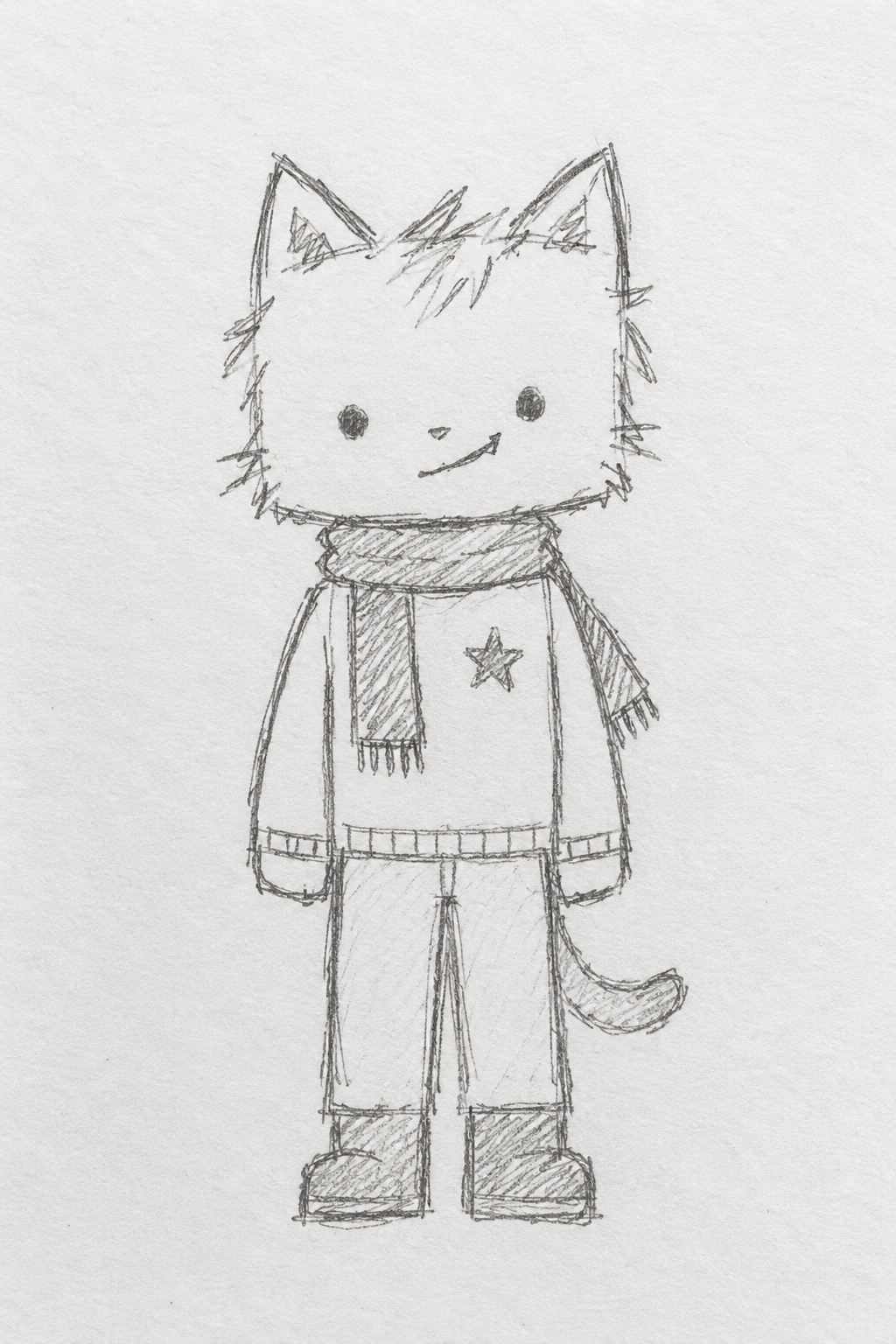
Simulated amateur pencil sketch, created for this demo. The drawing below was used as the actual generation input; AI inferred colors and unseen details. The final skin’s eyes were manually refined.
01Upload a clear photo or character reference and optionally describe appearance changes.
 02
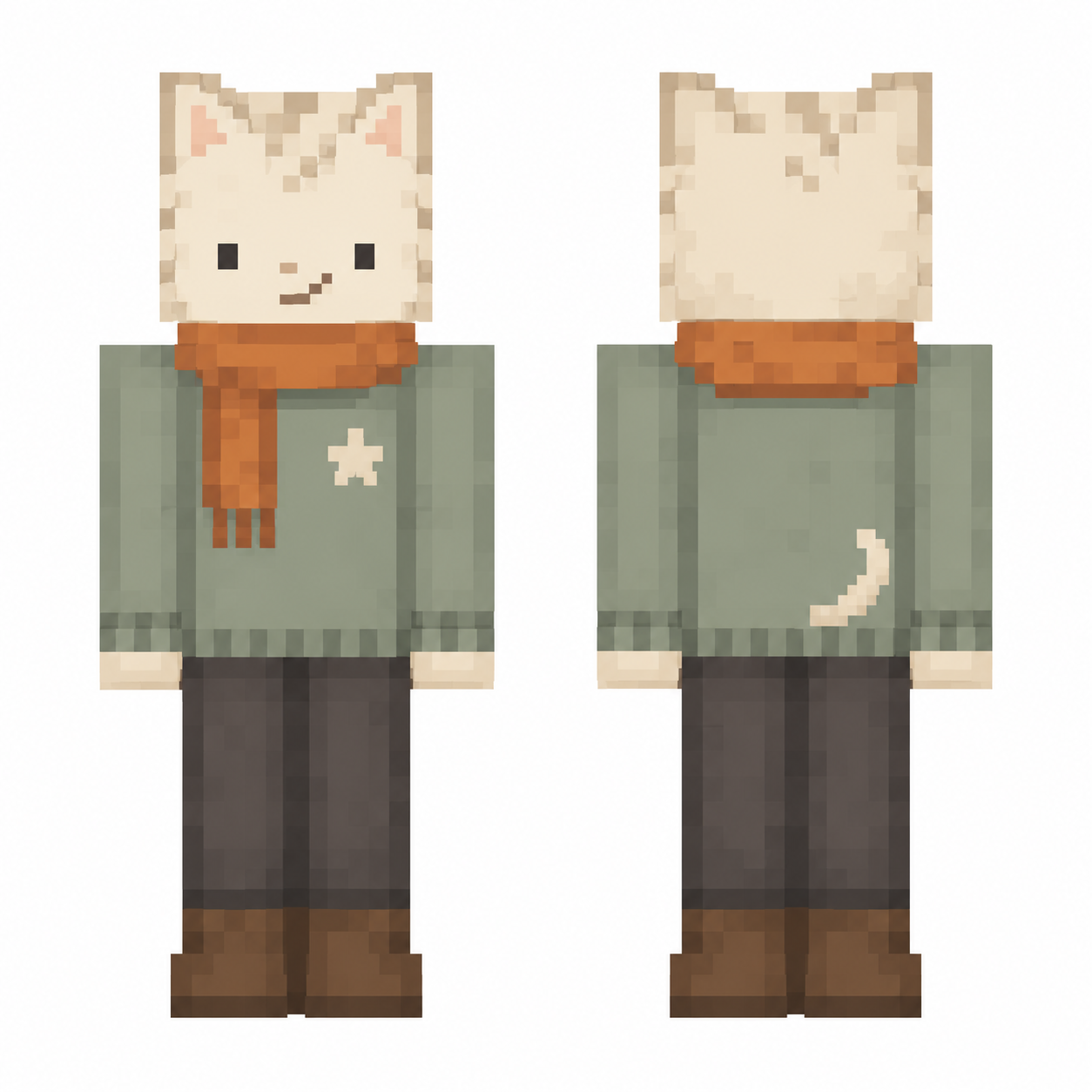
02Check the front and back before generating the skin. Adjust your appearance instructions and create another preview if you want to change the look.
Once you are happy with the preview, AI converts it into a 64×64 skin PNG. Inspect it in 3D, edit details and switch Classic / Slim models in the editor.
Download this skin PNGA real conversion example: reference image → generated front/back preview → the final 64×64 skin. Drag the last character to rotate.
Your photo and intermediate preview are temporarily sent to AI processing services under their retention policies. Account history stores generated previews and final skins, not the original photo.
Photo: front/back preview 1 credit, then skin conversion 2 more credits. Text: 1 credit. Failed steps refund only their own credits; successful previews are saved.
The workflow shapes the result. Compare simple pixel mapping, direct AI generation and a preview-first approach that gives you control over the character before building the skin.
Resizes or maps image pixels onto a skin texture. The result depends on how well the original image fits that layout.
Image → Pixel mapping → Skin
A general image model creates the character and skin texture together in one generation.
Image → General AI → Skin
First choose the character’s front and back appearance. Then a dedicated skin model turns your chosen preview into the skin texture.
Front/back preview → Refine → Skin model → Edit
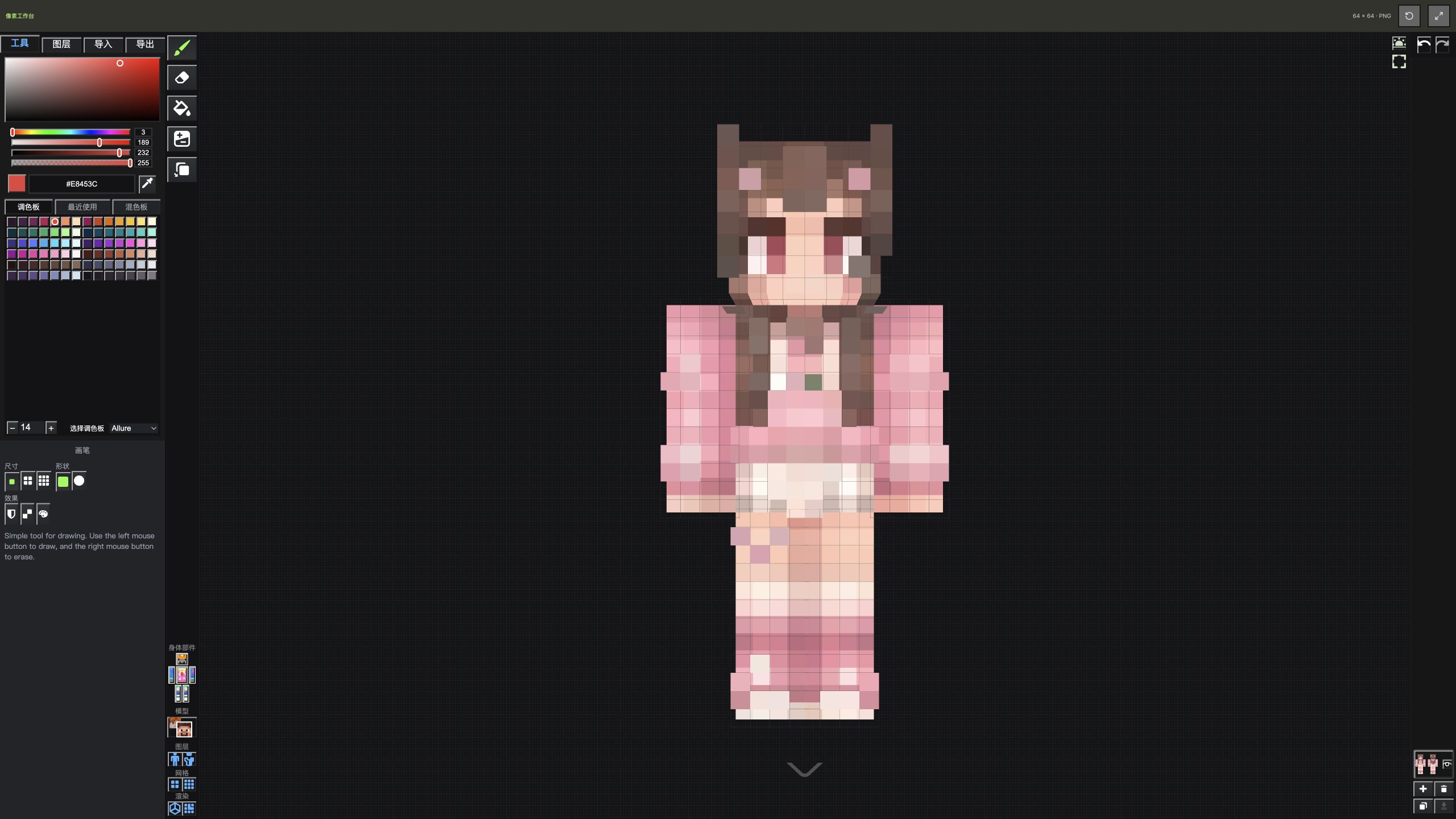
Keep creating after AI generation. Open your skin in the browser editor to refine colors and details, paint in 3D and switch between Classic and Slim models before exporting.
Choose a clear photo or character reference. Add appearance instructions for the hair, outfit, colors or accessories you want.
Review the matching front and back character views. Want a different look? Change your appearance instructions and generate another preview before converting it into a skin.
When you are happy with the preview, let AI convert it into a 64×64 skin PNG. Check it in 3D, edit details and switch Classic / Slim models in the editor before downloading.
Check your skin format and device compatibility against Minecraft’s official guides before importing your new character.
Download a 64×64 PNG and choose the matching character model when importing into Java. You can edit your skin and switch Classic / Slim models in our browser editor. Bedrock custom skin imports depend on your device; check the official guidance.
Minecraft Character Creator FAQ ↗“To import a skin, you need a flat “unwrapped” .png image”
Minecraft: What is a Minecraft Skin?
Classic / Steve uses four-pixel-wide arms; Slim / Alex uses three-pixel-wide arms. Open your generated skin in the editor to switch models, adjust the arm textures and download your PNG. Choose the same model when importing into Minecraft.
This example shows a real photo conversion. Check your generated skin in the 3D preview before importing it into the game.
Start small. Craft more when inspiration hits.
New users get 1 welcome credit: try a photo preview or create a skin from text.
Free trial
For a wardrobe full of possibilities.
Billed monthly
For the endlessly imaginative.
Billed monthly
A little extra fuel for your next creation.
20 credits · No expiration · No subscription or automatic renewal
More credits for your next adventures.
100 credits · Never expire · One-time purchase, no auto-renewal
Secure checkout by Waffo. Annual plans grant the year’s credits upfront.
Create Minecraft skins from photos or English character descriptions. Photo mode lets you review matching front and back character previews, adjust your appearance instructions and regenerate until you are happy, then convert your chosen preview into a skin. Preview the result in 3D, edit it in the browser and download a 64×64 PNG.
Upload a photo and add any appearance changes. A front/back preview costs 1 credit. Review the hair, outfit and colors; change your instructions and generate another preview if needed, with each new preview costing 1 credit. When you are happy, convert your chosen preview into a skin for 2 more credits. Then preview it in 3D, edit it and switch Classic / Slim models in the editor.
The sample download uses a standard 64 × 64 PNG that you can edit in the browser. Import it using the skin settings in Java Edition or custom skins in the Bedrock Dressing Room. Some console platforms restrict custom skin imports.
Choose Text to Skin and describe your character’s hair, outfit, colors and accessories. Generation uses 1 credit and produces a downloadable 64 × 64 PNG. Open it in the editor to refine details or switch between Classic and Slim models.
Photo to Skin temporarily sends your photo to AI processing services to generate front/back previews, currently using Nano Banana 2.1, then converts those views into a skin. Your photo is not stored in our public storage. Final skins and prompts are saved in your account history. Processing and retention follow the service policies; see our Privacy Policy and About page. Generated front/back previews are also saved privately in your account history so you can return later to create a skin.
No. This is an independent creation tool, not affiliated with Mojang or Microsoft. Minecraft is a trademark of its respective owners.
Photo: front/back preview 1 credit, then skin conversion 2 more credits. Text: 1 credit. Failed steps refund only their own credits; successful previews are saved.
A character illustration is not a Minecraft skin texture. Our photo workflow separates designing the character from generating the skin: review and refine the front/back preview first, then let AI convert the chosen design into the game’s skin layout. This makes appearance decisions easier to check before conversion. You can also edit the finished 64×64 PNG and switch Classic / Slim models in the browser editor.
Start with a photo, refine your character preview, then turn your chosen design into a Minecraft skin. Finish it in the editor and take it into your world.
Create your character preview